Instagram Masonry
Displays your Instagram posts in a beautiful Pinterest styled
Written By Social Hampster
Last updated 5 months ago
Displays your Instagram posts in a variable-height grid where taller images take up more vertical space. Creates a natural, Pinterest-style layout that looks great for photography and mixed-format content.
Plan: Personal and aboveHow to Insert
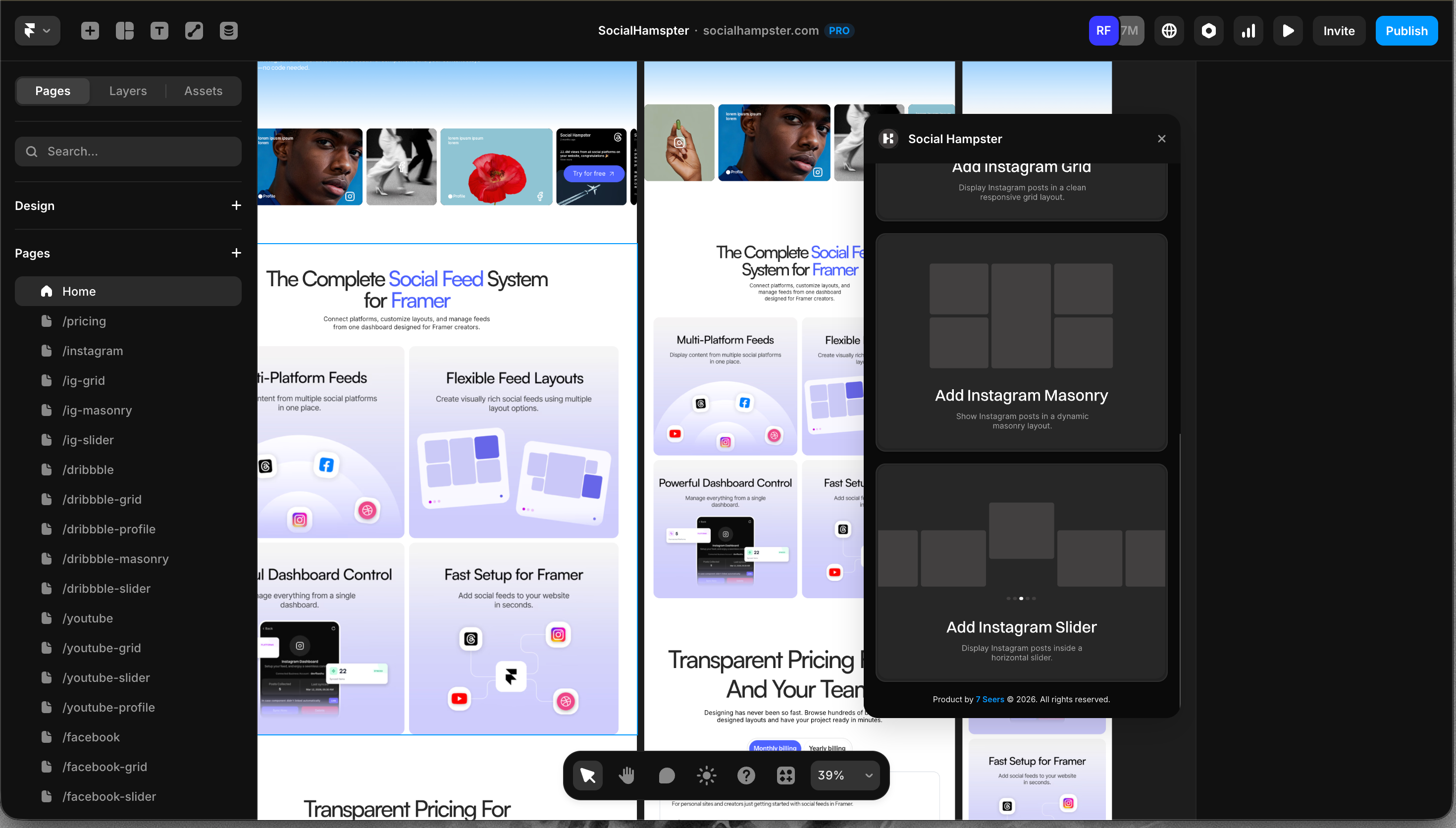
From the plugin: After connecting your Instagram account, click Masonry in the plugin panel.
From the dashboard: Click Details on your Instagram feed, then click Copy next to Masonry. Paste in Framer with Cmd+V or Ctrl+V.
Props Reference
Reels in Masonry
Reels appear automatically in the Masonry layout alongside your photos, in the same order you posted them on Instagram. No extra setting needed. Reels are available on the Personal plan and above.
Common Issues
The layout looks uneven
This is expected behavior. Masonry fills columns from top to bottom, so posts with different heights will create an intentionally varied layout. This is the defining feature of a Masonry grid.
Feed not showing on the published site
Whitelist your domain. In the Social Hampster dashboard, open your feed, click Details, and add your published site URL under Allowed Domains.