Dashboard Overview
Written By Social Hampster
Last updated 5 months ago
The Social Hampster dashboard at app.socialhampster.com is where you manage everything: your connected social accounts, your feeds, and your analytics. This article walks through every section of the dashboard so you know where to find things.
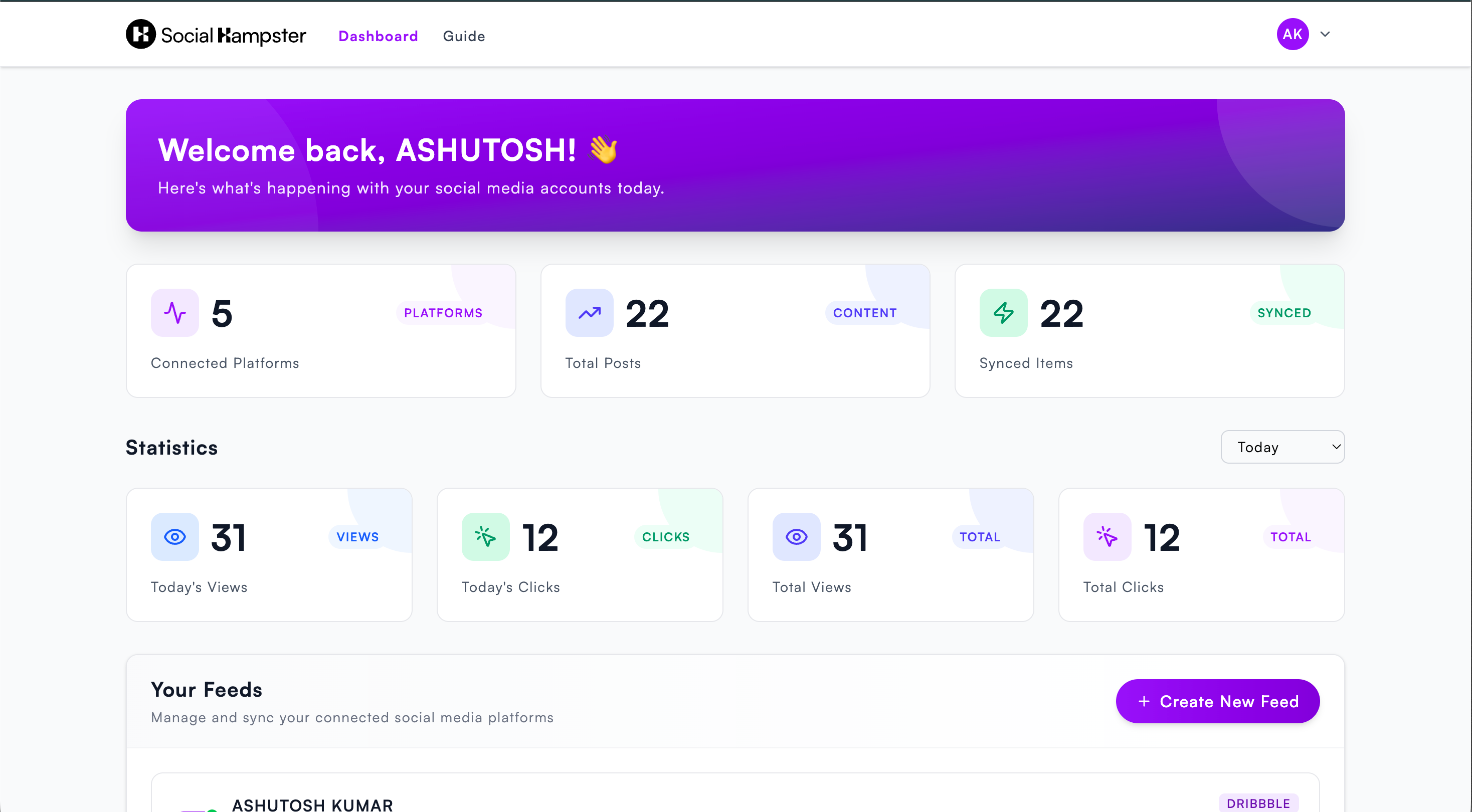
Header stats
At the top of the dashboard you will see three summary numbers at a glance:
Statistics section
Below the header stats is the Statistics section. This shows your overall engagement numbers across all feeds.
You can filter the statistics by time period using the buttons at the top of the section: Today, This Week, or This Month.
Your Feeds section
This is the main area of the dashboard. Every connected account appears here as a feed card. Each card shows:
Account name - the username or page name of the connected account
Platform badge - the platform icon and name (Instagram, Facebook, YouTube, Threads, or Dribbble)
Post count - how many posts have been fetched for this feed
Active badge - confirms the feed is connected and working
Feed card buttons
[Screenshot: Add screenshot of a feed card with Details, Sync, and Delete buttons labeled]
Feed Details panel
Clicking Details on any feed card opens the Feed Details panel. This panel has two main sections:
Analytics
Shows views and clicks specifically for this feed, broken down into Today and Total. Also displays the Click-through Rate (the percentage of views that resulted in a click).
Framer Components
Lists the available layout components for this feed: Grid, Masonry, and Slider (and Profile for YouTube and Dribbble). Each has a Copy button. Clicking Copy places the component on your clipboard, ready to paste into Framer.
There is also a How to use components link that opens a short visual guide.
[Screenshot: Add screenshot of the Feed Details panel with both Analytics and Framer Components sections visible]
Navigation
The left sidebar (or top navigation, depending on screen size) has two main links:
Dashboard - returns you to the main page described above
Guide - opens the Getting Started guide at app.socialhampster.com/guide, which covers Getting Started, Integrations, and Domain Whitelist setup
Account menu
Click your account name or avatar in the navigation to open the account menu. From here you can access: