Domain Whitelist
Written By Social Hampster
Last updated 5 months ago
The domain whitelist is a security feature that controls which websites are allowed to display your Social Hampster feeds. Without it, anyone who found your Feed ID could potentially embed your feed on their own site. The whitelist prevents that by only allowing feeds to load on domains you have approved.
This is the most common reason a feed shows in the Framer editor but not on the published site. You must whitelist your domain before publishing.
How to add a domain from inside the plugin
Open the Social Hampster plugin inside Framer by pressing Cmd+/ (Mac) or Ctrl+/ (Windows) and searching "Social Hampster"
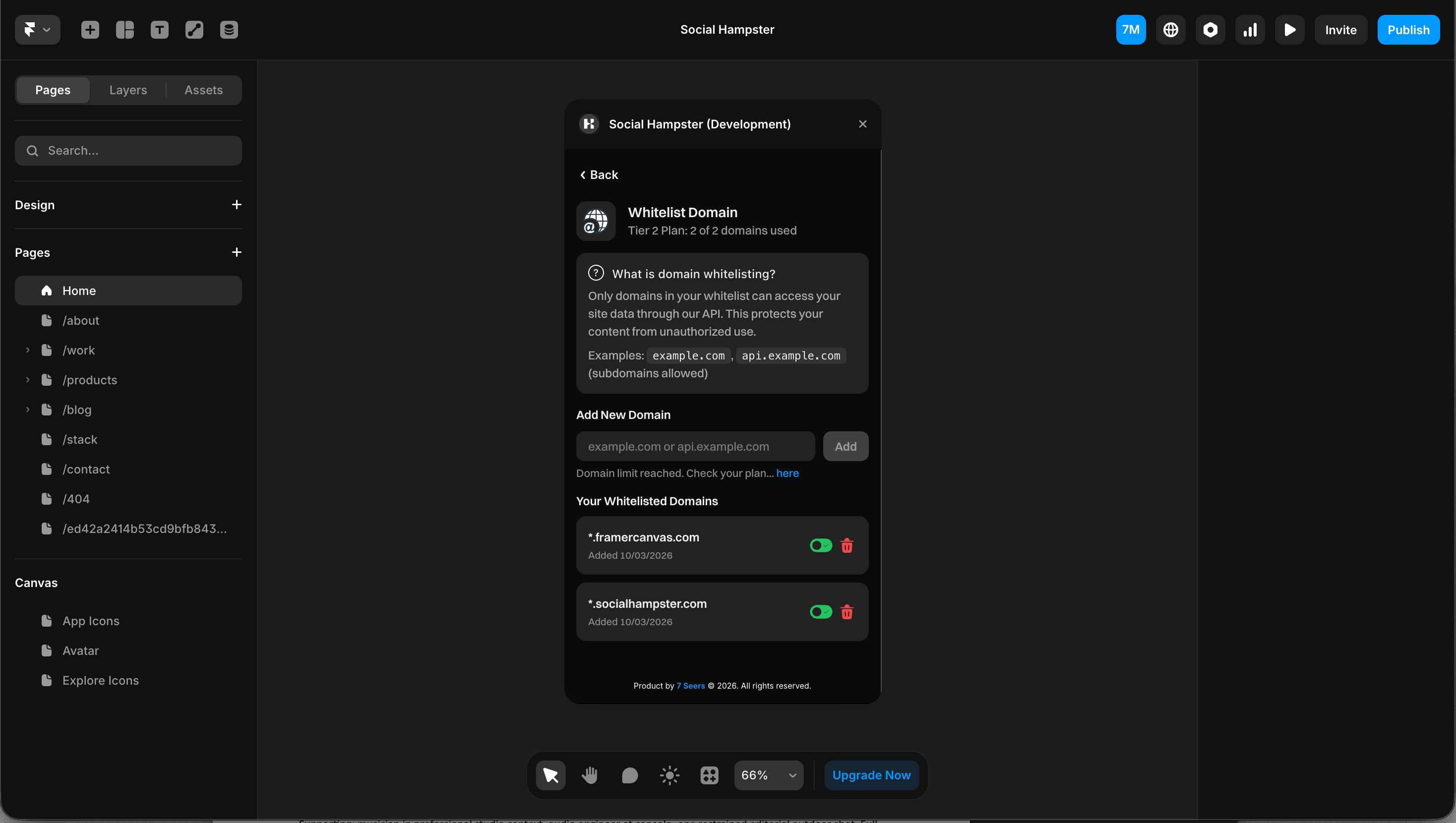
In the plugin panel, click the Whitelist Domain button
The Whitelist Domain screen opens. It shows your plan and how many domains you have used, for example: PERSONAL Plan: 0 of 2 domains used
Type your domain in the Add New Domain field, for example yoursite.com
Click Add
The domain appears in your Whitelisted Domains list immediately
How to add a domain from the dashboard
Find the Domain Whitelist section
Type your domain into the input field
Click Add or press Enter
The domain will appear in your whitelist immediately
Format rules
Enter domains in the correct format to make sure they are recognized. Incorrect formatting is a common source of issues.
Subdomains are allowed. You can add a subdomain directly as its own entry, for example api.example.com or sub.example.com. Each subdomain counts as one domain slot on your plan.
Framer preview vs published domain
Framer gives your project two different URLs that both need to be whitelisted if you want feeds to work in both places:
Framer preview domain - looks like yourproject.framer.website. This is the URL Framer uses when you click Preview or share a preview link. Add this if you want feeds to load during testing.
Your custom domain - the domain you have connected to your Framer project, such as yoursite.com. Add this before publishing so feeds work on your live site.
Tip: Even if you don’t add both Framer preview domain and your custom domain your feeds will work during development in the canvas.Plan limits
Removing a domain
To remove a domain from the whitelist, go to app.socialhampster.com/settings, find the domain in the list, and click the remove or delete icon next to it. Feeds will stop loading on that domain immediately. You can also remove domains from the Whitelist Domain screen inside the plugin.
Frequently asked questions
My feed shows in the Framer editor but not on my published site
This means your custom domain has not been added to the whitelist. Go to Settings and add your published domain in the correct format (no https://, no trailing slash).
Do I need to whitelist localhost for local development?
Framer projects run in the Framer editor and not on localhost, so you do not typically need to add localhost. Add your .framer.website preview domain instead.
I added the domain but the feed still does not show
Double-check the format. Make sure there is no https://, no trailing slash, and no www unless your site actually uses www. Try removing and re-adding the domain, then refresh your published site.
I used up my domain slots on the Personal plan
The Personal plan allows 2 whitelisted domains. If you need more, upgrade to the Business plan which increases the limit to 12 and adds wildcard support.
I need more than 12 domain slots
If you want more than 12 domain slots please write to socialhampster@gmail.com