Quick Start Guide
Get your first feed live in under 5 minutes.
Written By Social Hampster
Last updated 5 months ago
Getting from a fresh account to a live social feed on your Framer site takes about five minutes. Here is exactly what to do, in order.
No developer needed. Every step happens inside Framer or your browser. There is no code to write.
Step 1: Install the plugin in Framer
There are two ways to open Social Hampster inside Framer:
Option A - From the Framer Marketplace: Visit framer.com/marketplace/plugins/social-hampster and click Open Plugin. Framer will open with the plugin panel active.
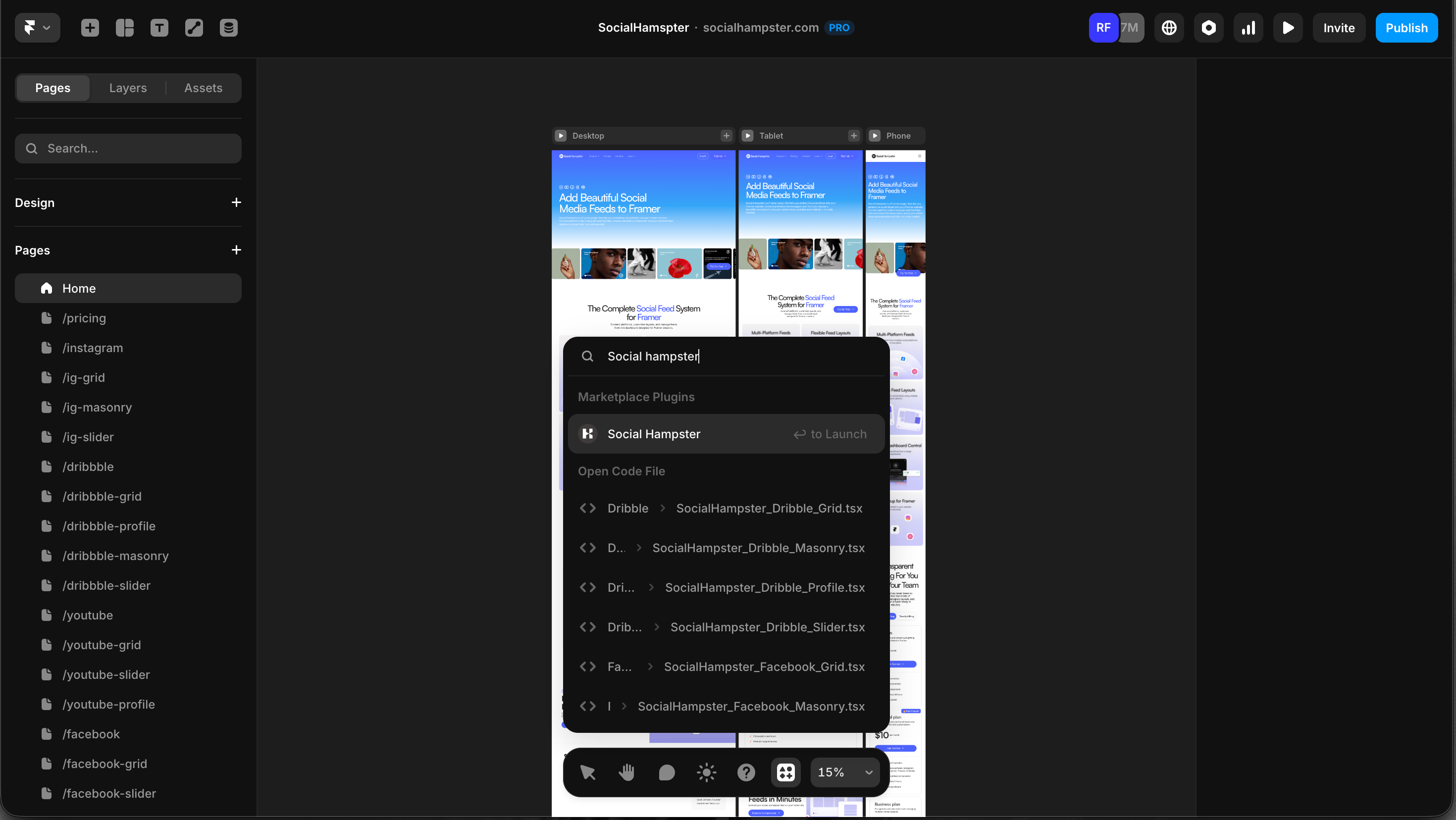
Option B - From inside Framer: Press Cmd+/ (Mac) or Ctrl+/ (Windows) inside any Framer project. A command palette appears. Type "Social Hampster" and click on it to open the plugin panel.
Step 2: Create your account or log in
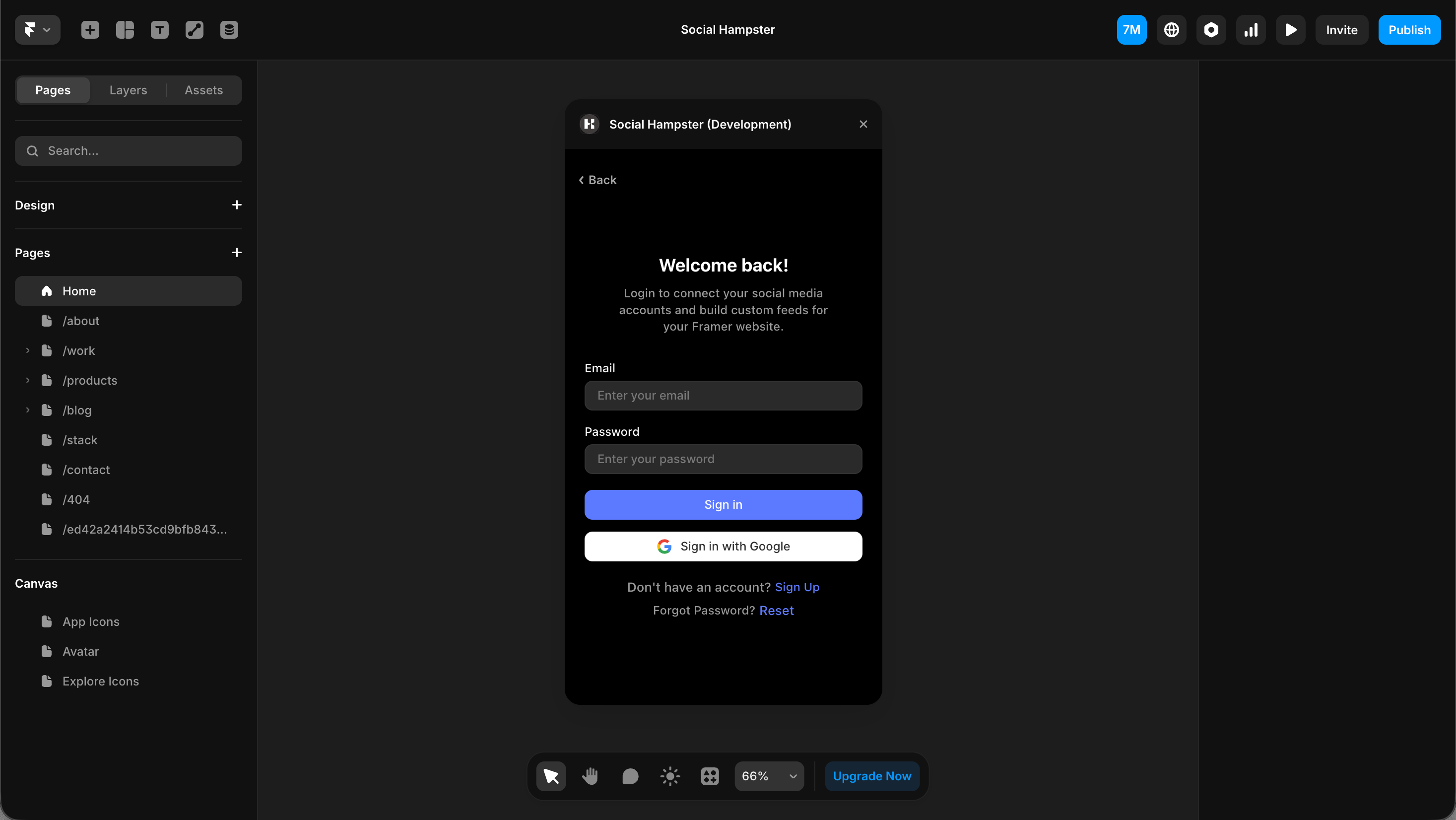
Once the plugin panel is open, you can sign up or log in directly inside Framer. Both Google login and email/password are supported.
Prefer to use a browser? Go to app.socialhampster.com and sign up or log in there instead. Your account works the same in both places.
Step 3: Connect your social account
From the plugin (inside Framer)
In the plugin panel, find the platform you want to connect and click Connect or install from
A popup window opens with that platform's OAuth authorization screen
Sign in to your social account and approve the requested permissions
Close the popup
Click the Refresh button at the top of the plugin panel
Your platform appears as a connected feed
From the dashboard
Go to app.socialhampster.com and click + Create New Feed
Select your platform
Authorize via OAuth and you will return to the dashboard with your feed ready
Instagram note: Instagram requires a Creator or Business account. Personal Instagram accounts are not supported due to Meta's API restrictions. If your account is personal, switch it to a Professional account in the Instagram app settings before connecting.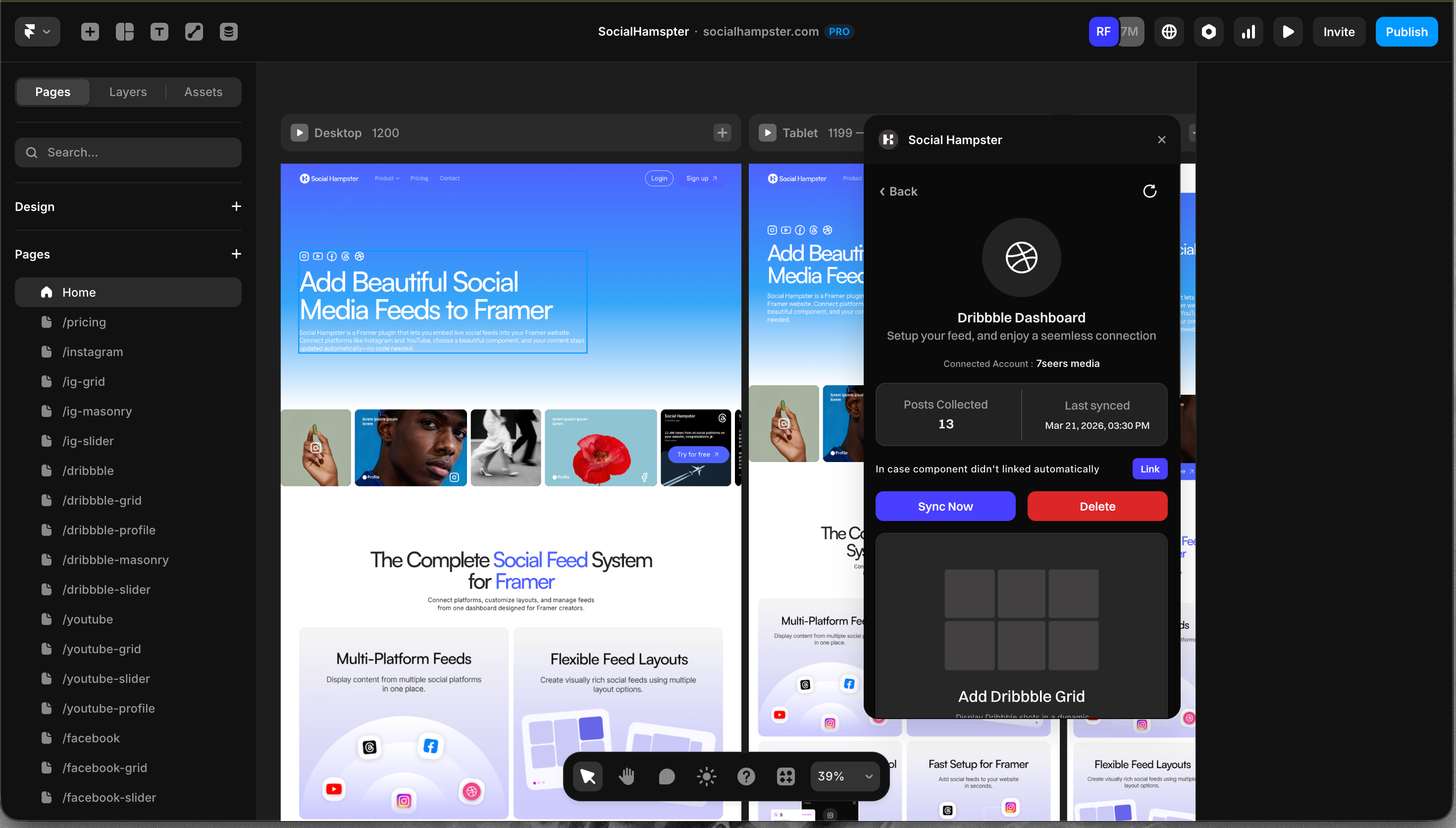
Step 4: Copy the component to your Framer canvas
From the plugin
After connecting, your platform appears in the plugin panel. Select the layout you want (Grid, Masonry, Slider, or Profile) and copy it from the panel. Then paste onto your Framer canvas with Cmd+V (Mac) or Ctrl+V (Windows).
From the dashboard
Click Details on your feed card, then go to the Framer Components section and click Copy next to the layout you want. Switch to Framer and paste with Cmd+V or Ctrl+V.
Step 5: Adjust your settings
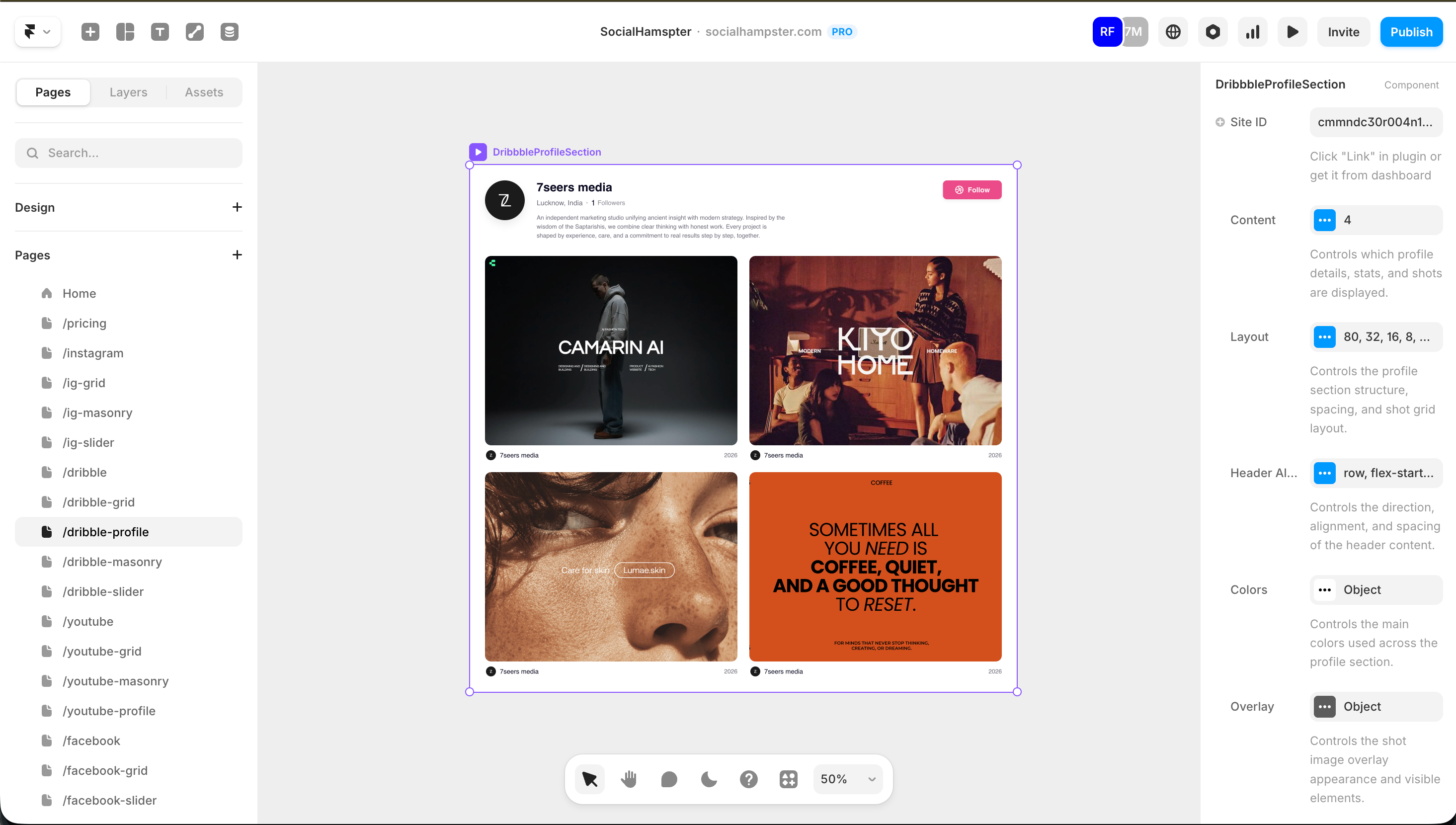
Click the component on your Framer canvas to select it. In the props panel on the right side of Framer you can adjust:
Number of posts to display
Number of columns (Grid layout)
Gap between cards
Aspect ratio and border radius
Caption and stats visibility
Resize and position the component like any other Framer element.
Step 6: Whitelist your domain before publishing
Your feed will not load on a published site until you add your domain to the whitelist. This is the most common step people miss.
From the plugin
Click the Whitelist Domain button in the plugin panel
Type your domain, for example yoursite.com
Click Add
From the dashboard
Go to app.socialhampster.com/settings
Find the Domain Whitelist section
Enter your domain in the format yoursite.com (no https://, no trailing slash)
Click Add
Also add your Framer preview URL (for example: yourproject.framer.website) if you want your feed to show while testing in Framer's preview mode.
[Screenshot: Add screenshot of the Whitelist Domain screen inside the plugin]
Your feed is now live and will update automatically as you post new content.