Dribbble Feed
Showcase your Dribbble portfolio directly on your Framer site
Written By Social Hampster
Last updated 5 months ago
Showcase your Dribbble portfolio directly on your Framer site. Social Hampster pulls your latest shots and displays them in a Grid, Masonry, or Slider layout. You can also add a Profile component to show your Dribbble account details alongside your shots. Perfect for designers who want their portfolio to stay current without manually updating it.
Social Hampster is one of the only Framer plugins that supports Dribbble. If you are a designer building your portfolio site in Framer, this means your latest work always appears on your site automatically.
How to connect Dribbble
From the plugin (inside Framer)
Open the Social Hampster plugin in Framer by pressing Cmd+/ (Mac) or Ctrl+/ (Windows) and searching "Social Hampster"
Find Dribbble in the platforms list and click Connect
A popup opens - log in to Dribbble and approve the connection
Close the popup
Click the Refresh button at the top of the plugin panel
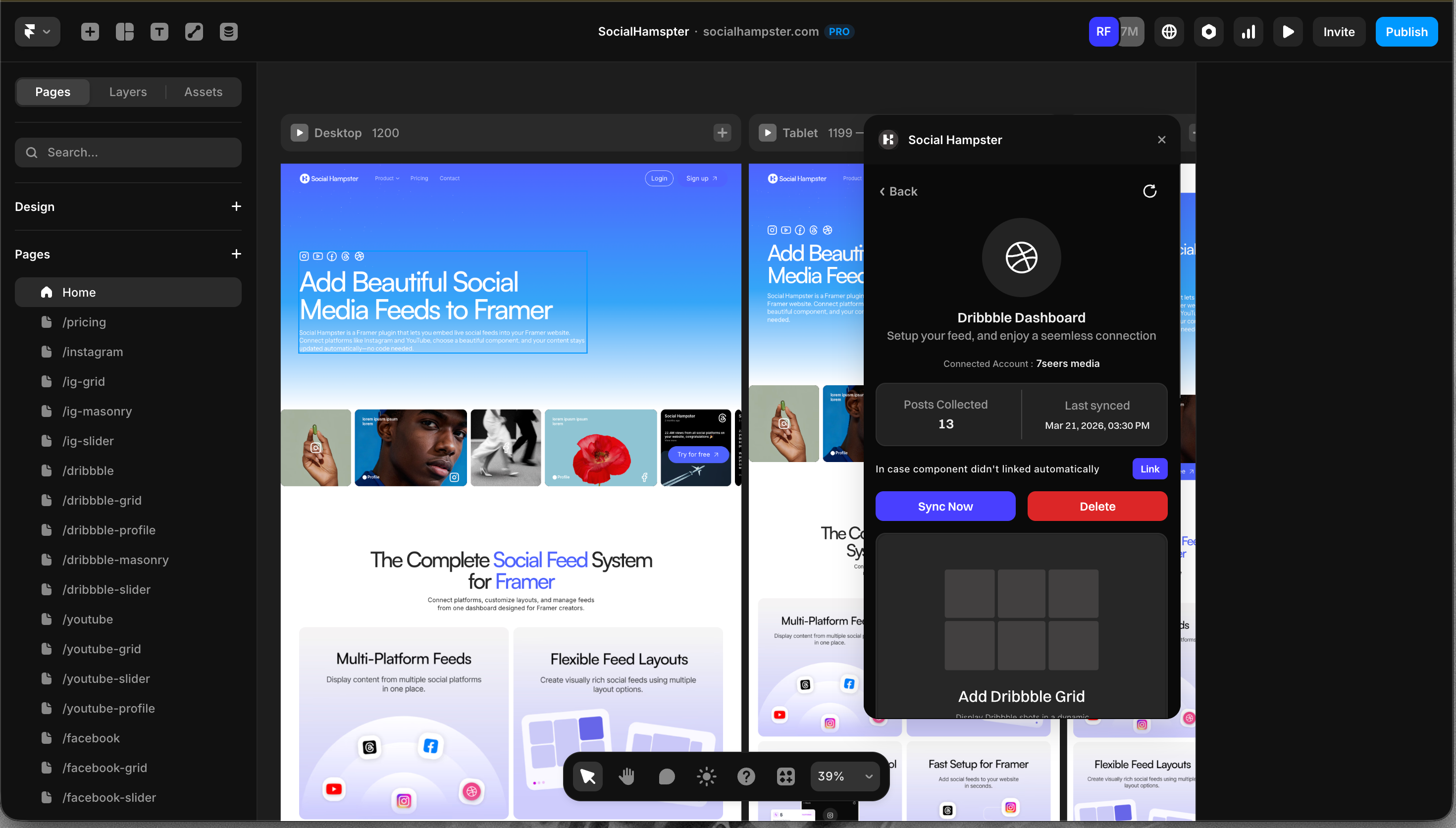
Dribbble appears as a connected platform
From the dashboard
Go to app.socialhampster.com and click + Create New Feed
Select Dribbble
Log in to Dribbble and approve the connection
You will return to the dashboard and your Dribbble feed will appear in the Your Feeds list
Available components
How to add a component to your canvas
From the plugin (easiest)
Connect your Dribbble account in the plugin (see above)
After connecting, Grid, Masonry, Slider, and Profile components appear in the plugin panel
Click the component you want — it inserts onto your Framer canvas instantly
From the dashboard
Go to app.socialhampster.com, click Details on your Dribbble feed
In the Framer Components section, click Copy next to the layout you want
In Framer, press Cmd+V (Mac) or Ctrl+V (Windows) to paste
Feed component props reference
Select a Dribbble Grid, Masonry, or Slider component on your Framer canvas to see these options in the right-side props panel:
Profile component props reference
Select the Dribbble Profile component on your Framer canvas to see these options:
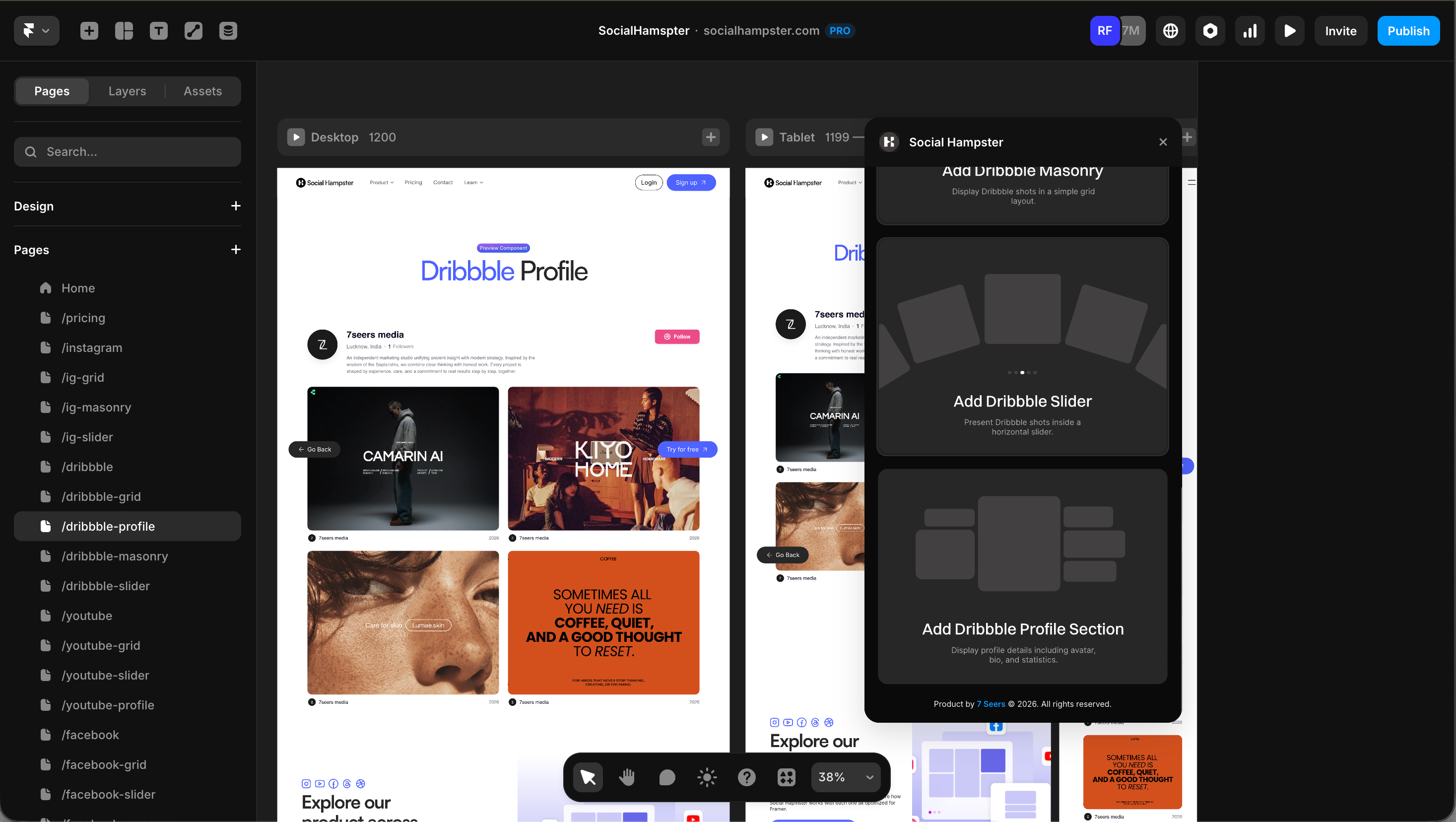
Pair the Profile and Grid components for a complete portfolio section. Add the Dribbble Profile component at the top of your page with a Dribbble Grid or Masonry feed below it. The Profile shows who you are, the feed shows your work - all updating automatically.
Common issues
Shots not loading
Make sure your Dribbble account has public shots published. Shots in draft state will not appear. Click the Sync button on the feed card in the dashboard to trigger a fresh fetch.
The feed shows in the editor but not on my published site
Your domain is not whitelisted. Go to app.socialhampster.com/settings or use the Whitelist Domain button inside the plugin, and add your published domain (no https://, no trailing slash).
New shots are not appearing
Use the Sync button on the feed card in the dashboard to fetch your latest Dribbble shots immediately.