Instagram Feed
Embed your Instagram posts directly on your Framer site
Written By Social Hampster
Last updated 7 months ago
Embed your Instagram posts directly on your Framer site. Social Hampster supports photos, carousels, and Reels from Instagram, displayed in your choice of Grid, Masonry, or Slider layout.
Important: Creator or Business account required. Instagram's API does not allow personal accounts to connect to third-party apps. You must have a Creator or Business (Professional) account to use Social Hampster with Instagram. Personal accounts will not work.
How to switch to a Professional account
If your Instagram account is personal, you can switch it for free inside the Instagram app:
Open the Instagram app and go to your profile
Tap the menu (three lines) and go to Settings and privacy
Tap Account type and tools
Tap Switch to Professional account
Choose Creator or Business and follow the prompts
Once switched, return to Social Hampster and connect your Instagram account.
How to connect Instagram
From the plugin (inside Framer)
Open the Social Hampster plugin in Framer by pressing Cmd+/ (Mac) or Ctrl+/ (Windows) and searching "Social Hampster"
Find Instagram in the platforms list and click Connect
A popup opens - log in to Instagram and approve the permissions
Close the popup
Click the Refresh button at the top of the plugin panel
Instagram appears as a connected platform
From the dashboard
Go to app.socialhampster.com and click + Create New Feed
Select Instagram
Authorize via OAuth and return to the dashboard
Your Instagram feed appears in the Your Feeds list
Available components
How to add a component to your canvas
From the plugin (easiest)
Connect your Instagram account in the plugin (see above)
After connecting, Grid, Masonry, and Slider components appear in the plugin panel
Click the component you want, it inserts onto your Framer canvas instantly
From the dashboard
Go to app.socialhampster.com, click Details on your Instagram feed
In the Framer Components section, click Copy next to the layout you want
In Framer, press Cmd+V (Mac) or Ctrl+V (Windows) to paste
Props reference
When you select an Instagram component in Framer, the right-side props panel shows the following options:
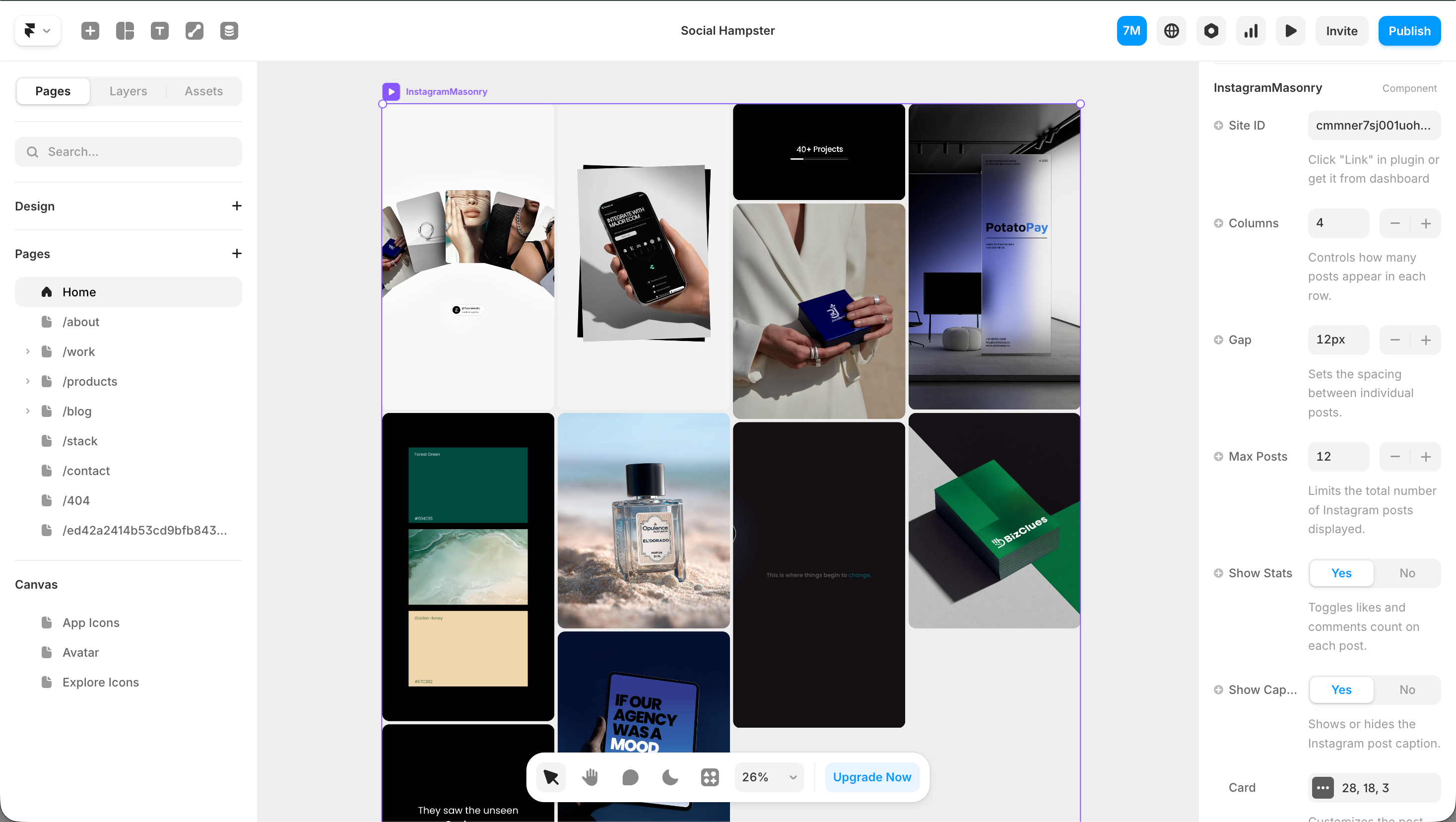
What content is supported
Photos - single image posts
Carousels - multi-image posts (the first image is shown as the card thumbnail)
Reels - video content (Personal plan and above; see the Instagram Reels article for details)
Common issues
My Instagram account will not connect
This almost always means the account is a personal account. Switch to a Creator or Business account in the Instagram app, then try connecting again.
The feed shows in the editor but not on my published site
Your domain is not whitelisted. Go to app.socialhampster.com/settings and add your published domain. You can also do this from the Whitelist Domain button inside the plugin.
Some posts are missing
Posts that have been archived, deleted, or set to private on Instagram will not appear in the feed. Use the Sync button on your feed card in the dashboard to pull in the latest posts.
The feed is showing old posts
Click the Sync button on your Instagram feed card in the dashboard to fetch the latest posts manually.
Was this helpful?
Still need help? Ask the team