Installing the Plugin in Framer
A quick guide
Written By Social Hampster
Last updated 7 months ago
Social Hampster runs as a plugin panel inside Framer. There are two ways to open it the first time. After that, it is available in your Framer plugins list whenever you need it.
Two ways to install
Method 1: From the Framer Marketplace
Click Open Plugin
Framer opens with the Social Hampster plugin panel already active
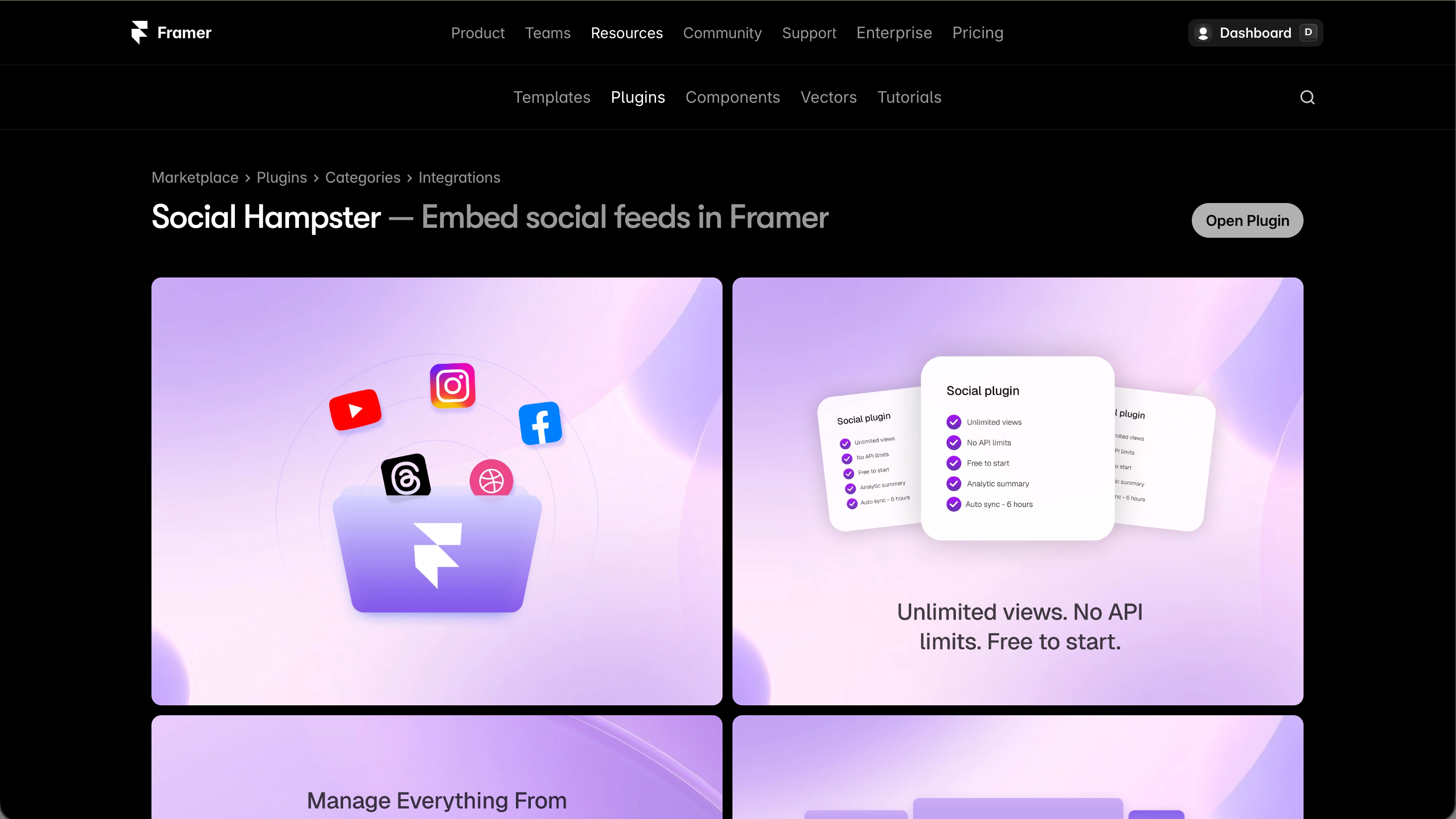
Method 2: From inside Framer
Open any Framer project
Press Cmd+/ on Mac or Ctrl+/ on Windows to open the command palette
Type Social Hampster in the search field
Click on Social Hampster in the results to open the plugin panel
Signing in to the plugin
Once the plugin panel is open, sign up or log in with Google or your email address. No credit card is required to start.
Your account is shared between the plugin and the web dashboard at app.socialhampster.com. If you already have an account from the dashboard, log in with the same credentials in the plugin.
[Screenshot: Add screenshot of the plugin panel sign-in screen]
What the plugin panel shows
After signing in, the plugin panel shows your account info and the tools you need to manage your feeds without leaving Framer.
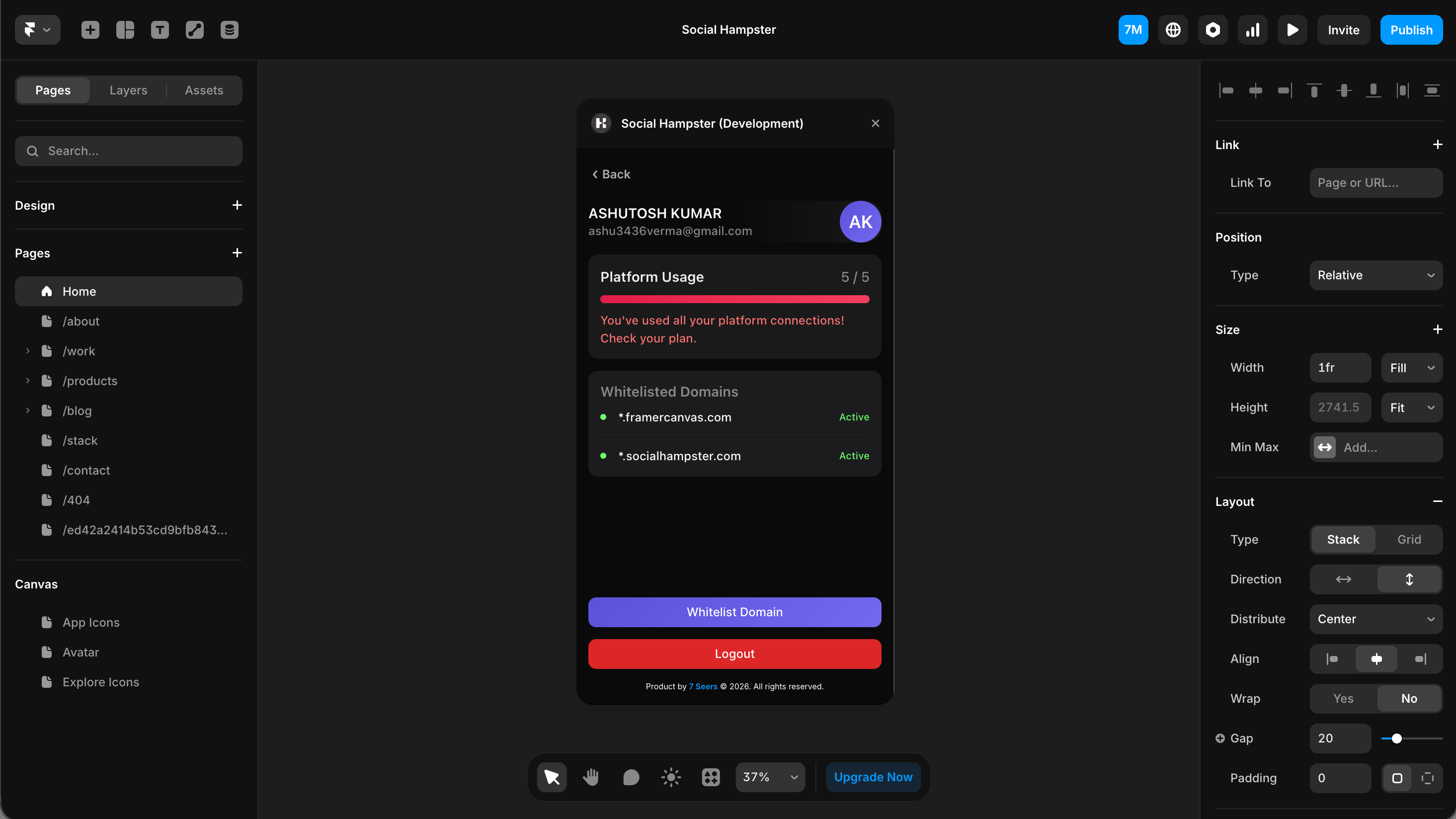
The plugin vs the dashboard
Both the Framer plugin and the web dashboard at app.socialhampster.com give you access to the same features. You can connect accounts, manage domains, and access your feeds from either place. Use whichever fits your workflow.
Was this helpful?
Still need help? Ask the team